


Schedule a recurring task. Your agent runs it when you decide.

Schedule when each agent should activate and turn repetitive processes into visible, controlled, and traceable runs.

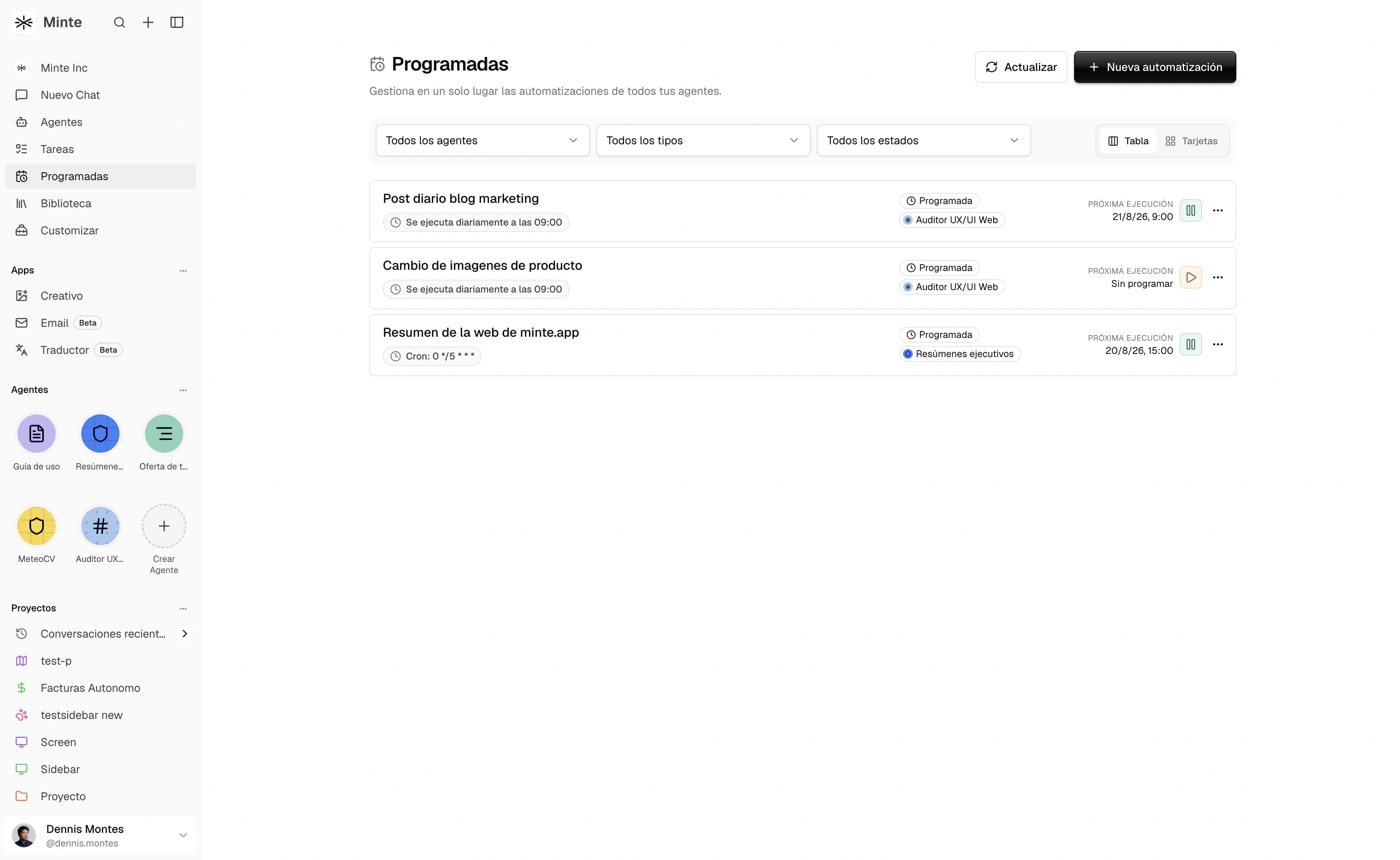
Real view of Minte Scheduler with filters, cadence, and next run

Automations

Set the trigger once. Review every result.

Manage automations across all your agents, see what activates them, and pause, run, or resume each process whenever needed.

Run automatically

Scheduler

Automations that activate an agent on a schedule, through a webhook, an incoming email, or a watched folder. They run without someone launching the work each time.

  • Choose the event that should start the agent.
  • Configure the prompt and conditions for every activation.
  • Pause, resume, run now, and inspect the history.
  • Every run creates a traceable task with its result.
Only once?

Create a Task for a one-off result.

Launch the work now or save it to Backlog until the team is ready to activate it.

Explore Tasks

Triggers

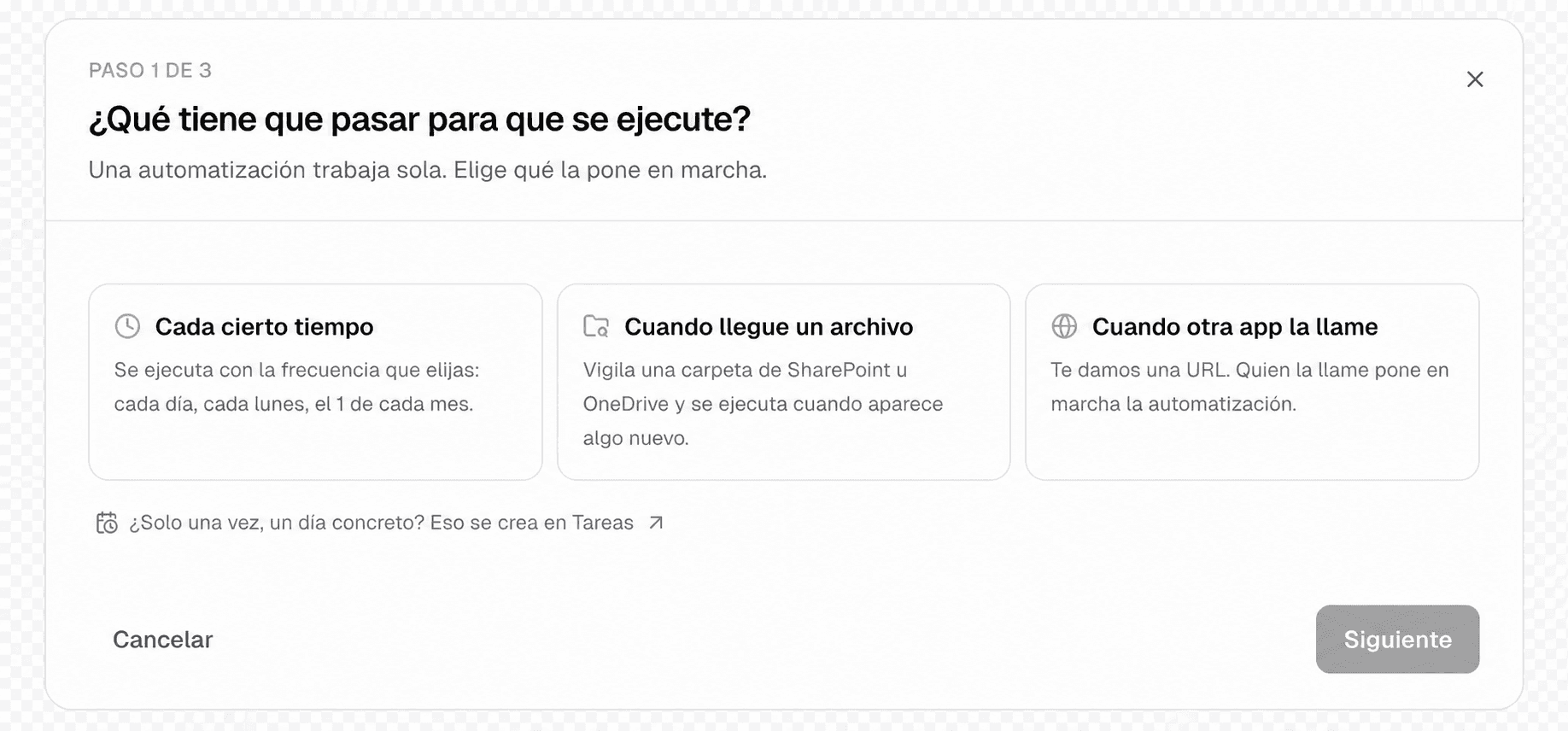
Choose what activates the agent.

Scheduler brings Minte automations together: processes that start at a specific time or when an event occurs in your systems.

Read the Automations documentation

Schedule

Run the work at an interval, on selected days, or through a cron expression.

Webhook

Activate the agent when another system sends an event to the automation URL.

Incoming email

Start the process when a message reaches the assigned address.

Watched folder

Put the agent to work when new files appear in a connected folder.

Minte form for creating an automation and configuring its agent, trigger, and prompt

How it works

From trigger to result, without losing control.

Configure an automation once and review each run as an independent, traceable task.

  1. 01

    Choose the agent

    Select the agent that already has the required sources, tools, and permissions.

  2. 02

    Choose the trigger

    Decide whether it starts on a schedule, webhook, incoming email, or watched folder.

  3. 03

    Configure the work

    Define the timing or event, write the prompt, and choose whether to save each run as chat.

  4. 04

    Review every run

    Inspect the history, next activation, and the task created with its result.

Use cases

Processes that start exactly when they should.

Each trigger fits a different kind of work and generates a task visible to the team.

Schedule

Daily pipeline report

Summarize changes and at-risk opportunities before the workday begins.

Email

Inbox classification

Identify urgency and turn incoming messages into actionable work.

Webhook

Handle an incident

Start a review when another system records a non-conformity or alert.

Folder

Process new documents

Read and classify files as they appear in a connected folder.

Responsible automation

Autonomy for the agent. Visibility for your team.

Manage the full lifecycle of each automation and open any individual run whenever needed.

Status and next activation

Distinguish Active, Paused, or Failed automations and see when they will run again.

Run, pause, or resume

Start a manual run or stop the process temporarily without deleting its configuration.

Run history

Every activation creates a task with its steps, status, and result.

Optional conversation

Save each run as an [Auto] chat to review the complete context.

Frequently asked questions

What matters before automating.

How automatic agent work is triggered, recorded, and controlled.

What can trigger an automation?+

A schedule, a webhook request, an incoming email, or new files appearing in a watched folder.

How often can it run?+

Scheduled automations support a minimum frequency of 5 minutes. Watched folders are checked at most once per hour.

Is every run recorded?+

Yes. Every activation creates an independent task with its status, steps, and result; it can also be saved as an [Auto] conversation.

Can an automation send email?+

Yes, provided the agent has the Send email (without confirmation) tool enabled. The standard email tool requires manual approval.

What happens if an automation fails?+

Review the Failed status and generated task, correct the configuration, then run again or resume the process.